An in-house training video runs five steps: lock one learning objective and script it, record clean audio and screen takes, edit and caption to a fixed export spec, package as SCORM, xAPI or embed, then test tracking before publishing.
Why Bring Corporate Training Video Production In-House (And What the Workflow Covers)
Your first outsourced module usually looks excellent. Then the policy changes, the software gets a new interface, and the vendor sends a change order for a reshoot you could have handled in an afternoon.
That churn is the real argument for in-house production. Compliance refreshers, onboarding walkthroughs and system demos all age fast, and the team that owns the content should own the timeline. Outsourcing still makes sense for brand films, customer-facing launch videos and anything needing a crew on location.
An in-house workflow is narrower than a production company’s, and that is the point. Five steps carry a module from idea to LMS:
- Objective, script and storyboard — one behavior the learner should perform differently afterward, approved by the subject matter expert and, where relevant, legal.
- Capture — voiceover, camera takes, screen recording.
- Edit, caption and export — trims, callouts, captions, accessibility pass, all exported to a written spec.
- Package — a SCORM or xAPI wrapper if you need tracking, or a native upload or hosted embed if you do not.
- Upload and test — staging course, tracking check, device check, publish, measure.
Skip a step and you pay for it later. Most in-house teams rush the first step, then spend three edit sessions fixing a script problem.
Step 1 — Lock the Learning Objective, Script, and Storyboard Before You Touch a Camera
Time: plan half a day of SME time for a five to seven minute module. You need: one written objective, SME interview notes, a two-column script template.
Start with a single sentence a manager could verify: "After this module, a new hire can submit an expense report with the correct cost center without asking finance." One video, one objective. If your draft objective contains the word "and," you probably have two videos.
Write the script as a two-column document. Left column holds the narration exactly as it will be spoken; right column holds what is on screen at that moment — a camera take, a screen recording step, a lower third, a pause.
Read the narration out loud before anyone approves it. Written policy language collapses when spoken, and you will catch clauses that no human can deliver in one breath. Aim for roughly 140 to 150 spoken words per minute as a planning figure, so a five-minute module runs somewhere near 700 words.
Storyboard only what is ambiguous. A talking-head intro needs no frames; a seven-click software process needs a numbered shot list with the exact screen state for each click. Get the SME to sign off on the script, not on the finished edit — script changes cost minutes, edit changes cost hours.
Step 2 — Build a Repeatable Recording Kit and Capture Clean Audio, Video, and Screen Takes
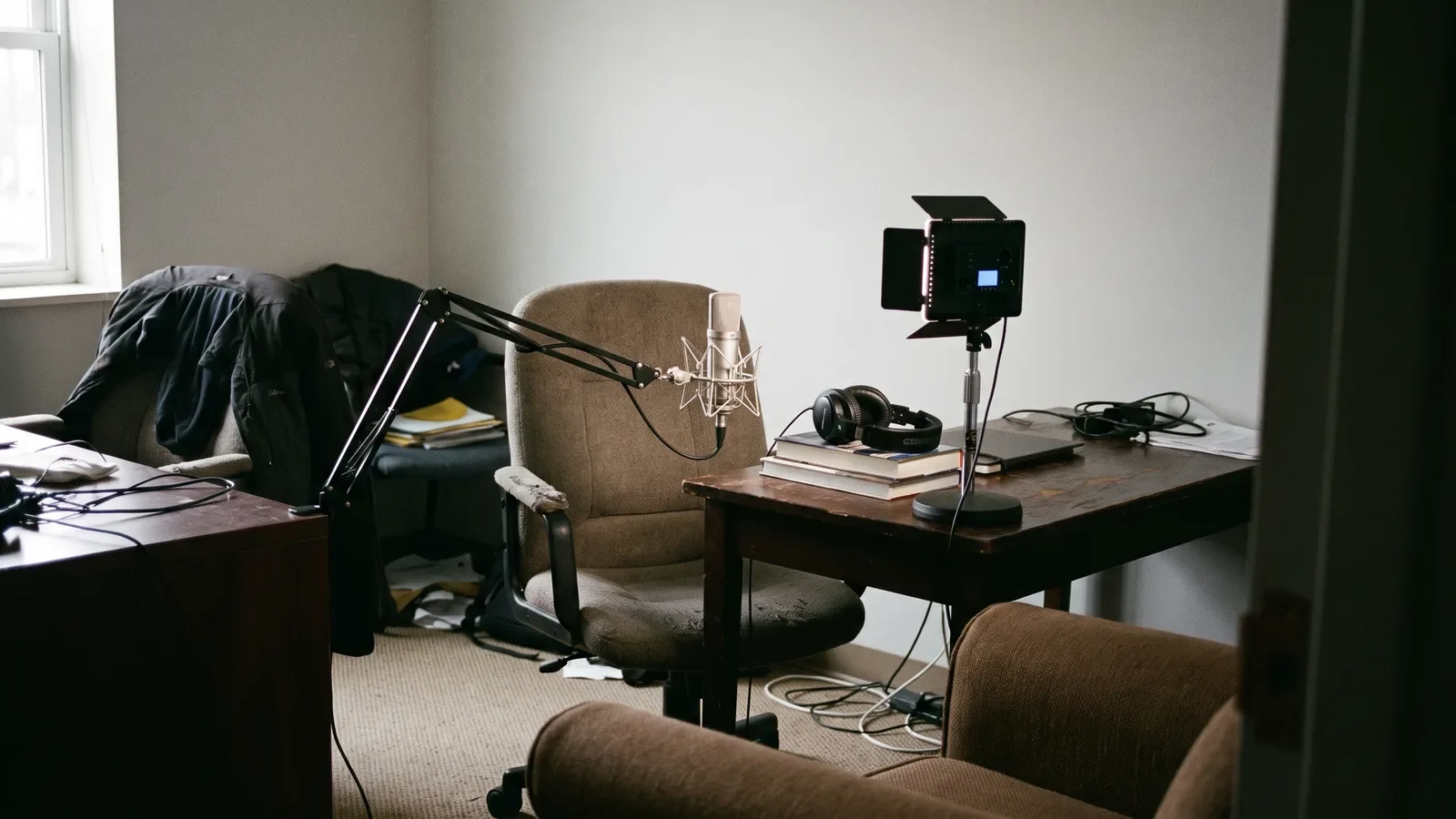
Time: one afternoon to assemble and test the kit; about 90 minutes of studio time per finished module. You need: a USB condenser or lavalier microphone, closed-back headphones, one key light, a neutral wall, and a screen recorder that captures system audio separately.
Audio first. Learners forgive soft focus and forgive an awkward presenter; they abandon a module with room echo and a laptop-mic hiss. Record in a carpeted room with soft furniture, keep the mic about a hand-span from the speaker’s mouth, and capture thirty seconds of silence for noise reduction.
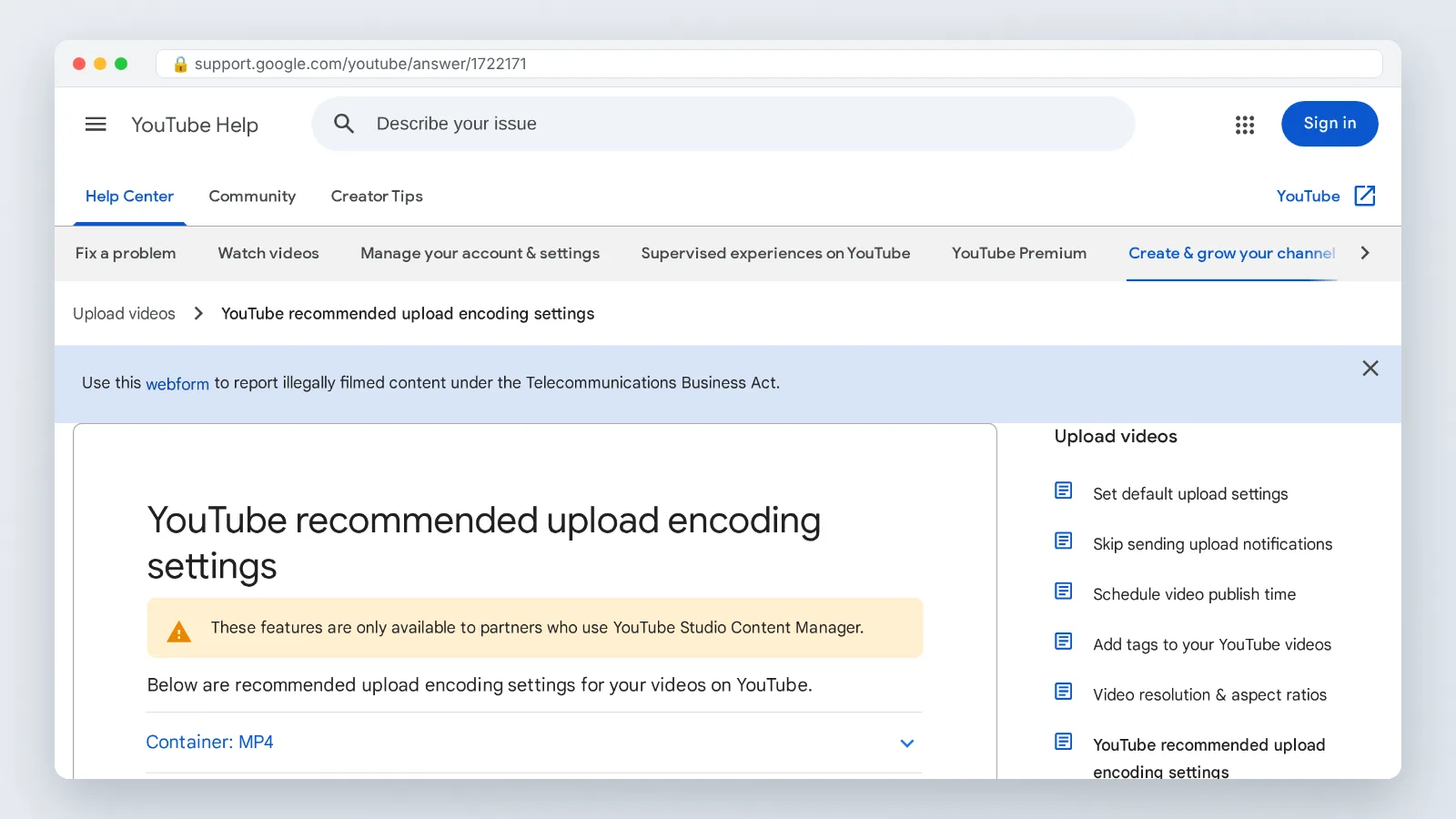
Set the camera to a progressive frame rate and leave it there. YouTube Help states that interlaced footage should be deinterlaced before upload, for example converting 1080i60 to 1080p30 — a cleanup step you avoid entirely by shooting progressive from the start.
For screen takes, record at the monitor’s native resolution, hide notification banners, and use a dedicated demo account with sanitized data. Record each process step as its own take. Re-recording click four is trivial; re-recording a seven-minute unbroken screen capture is not.
When no SME will go on camera, avatar-based tools are a reasonable substitute for narration-driven modules. AI Studios, DeepBrain AI’s cloud platform for AI avatar videos, generates video from a script, a topic prompt, a web URL or an uploaded document, and its Docs to Video feature accepts .ppt, .pptx, .pdf, .doc, .docx, .xlsx and .txt files up to 20 MB. Its Free plan costs $0 and allows up to 3 AI videos of up to 1 minute each in 720p, so full-length modules require a paid plan. For hands-on equipment training, filmed footage of the actual machine still beats any avatar.
Step 3 — Edit, Caption, and Export to a Documented Spec (Resolution, Frame Rate, File Size)
Time: budget three to five times the finished runtime for a first edit. You need: your editor of choice, a caption file workflow, and a one-page export spec document.
Assemble on the voiceover track. Lay down the narration, cut it tight, then hang the visuals on it — this prevents the slow, padded pacing that kills completion rates. Trim every "um" and every four-second wait for a page to load.
Decide your frame rate once and apply it to every module. YouTube Help lists 24, 25, 30, 48, 50 and 60 frames per second among the common accepted upload frame rates, and for screen-heavy training 30 fps is usually enough.
Captions are not optional. Generate a transcript, correct the product names and acronyms by hand, then export a sidecar .vtt or .srt file rather than burning text into the picture — sidecar files stay editable and let the LMS player toggle them.
Write the export spec down and pin it in your team channel:
| Setting | House standard |
|---|---|
| Aspect ratio | 16:9 |
| Resolution | 1920×1080 |
| Frame rate | Same as source, progressive |
| Container / codec | MP4, H.264 video, AAC audio |
| Captions | Sidecar .vtt, reviewed by a human |
| Naming | course-module-version-date |
Articulate recommends a 16:9 aspect ratio for videos in Rise 360, which compresses uploads for web delivery unless you choose to preserve file quality — worth knowing before you argue about bitrate.
Step 4 — Package the Video for Delivery: SCORM, xAPI, Native LMS Upload, or Hosted Embed
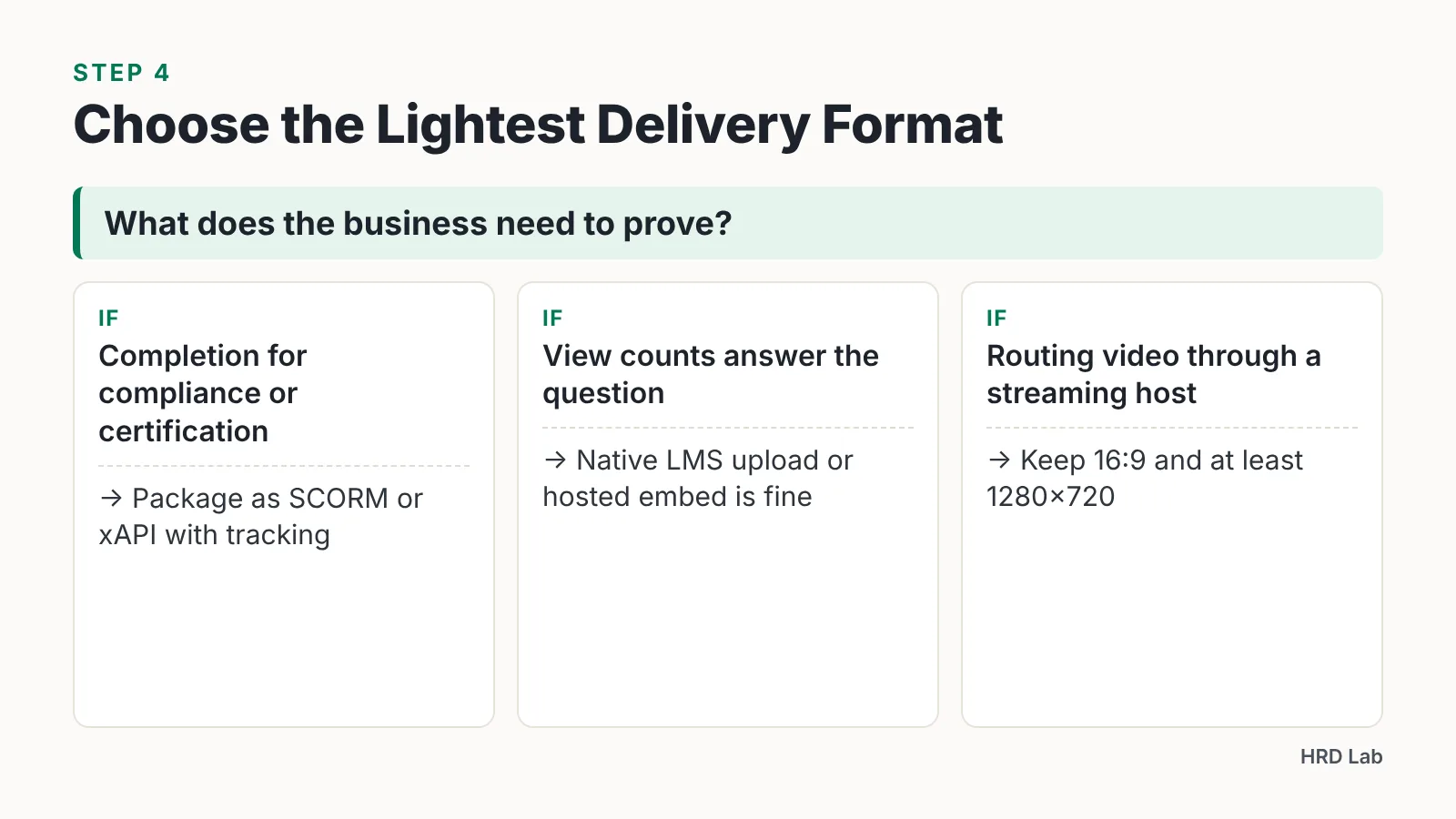
Time: 30 to 60 minutes per module once your template exists. You need: your authoring tool’s publish settings and a written answer to one question — what does the business need to prove?
Packaging is a tracking decision, not a technical one. Ask what the compliance officer or the sponsor must be able to show twelve months from now, then pick the lightest format that produces it.
| Delivery method | What it records | Best for | Watch out for |
|---|---|---|---|
| SCORM 1.2 / 2004 | Completion, time, quiz score inside one LMS | Mandatory compliance training | Package size, no tracking outside the LMS |
| xAPI | Granular statements to an LRS, including offline and mobile | Blended programs, field apps | Needs an LRS and someone to query it |
| Native LMS video upload | Views and completion, depending on the platform | Quick internal updates | Storage limits, re-upload for every fix |
| Hosted embed (private video host) | Play and engagement analytics on the host side | Large libraries, bandwidth control | Corporate firewalls may block the host |
File size controls more of this than people expect. Articulate Support states that Rise 360 limits each uploaded video, audio clip, image or attachment to 5 GB, so a long 4K master will need a compressed delivery version regardless of your ambitions.
If you route video through a streaming host instead, mind the minimum quality. YouTube sets no minimum resolution for standard uploads but recommends at least 1280×720 for 16:9 video, and text on a screen recording becomes unreadable well before that floor.
Step 5 — Upload, Test Tracking and Playback, Then Publish and Measure
Time: 45 minutes of testing per module. You need: a staging course, one test learner account, a phone, and a locked-down company laptop.
Upload to a hidden or draft course first, never straight to the live catalog. Enroll your test account, play the module end to end, and confirm four things: the video plays without buffering, captions toggle on, the completion status flips, and the bookmark resumes at the right point after you close the tab.
Test on the hardware your learners actually use. Corporate browsers with strict content policies break embeds that worked fine on your machine, and warehouse staff on a phone over cellular will hit a different bitrate ceiling than head office.
Measure three things after launch. Completion rate tells you whether the module is the right length; the drop-off point in the player analytics tells you exactly which minute lost people; a short manager check-in about a month later tells you whether the behavior changed.
Fix the drop-off, not the thumbnail. If half your audience leaves at the two-minute mark, that is a script problem you can solve in the next version without touching the camera.
The Script-to-LMS Production Checklist
Run this before every publish. It exists because a handful of items get forgotten under deadline pressure, and each one costs a re-upload.
Pre-production
- One written learning objective, verified by the sponsor
- Two-column script, read aloud, SME sign-off captured in writing
- Shot list for any multi-step screen process
Capture
- Microphone tested with headphones on, levels peaking well below clipping
- Thirty seconds of room tone recorded
- Camera set to a progressive frame rate
- Demo account with sanitized data, notifications disabled
Post-production
- Voiceover cut tight, dead air removed
- Captions generated, then corrected by a human for product names
- Export matches the house spec: 16:9, 1920×1080, MP4/H.264, sidecar .vtt
- File named with course, module, version and date
Packaging and delivery
- Tracking format chosen against a real reporting requirement
- Delivery file comfortably under the platform limit — Articulate Support puts the Rise 360 ceiling at 5 GB per media file
- Package tested in a staging course, not the live catalog
Launch
- Playback verified on a phone and a managed work laptop
- Completion and resume both confirmed with a test learner
- Analytics baseline noted on day one so drop-off has something to compare against
Print it. Teams that keep this on one page ship faster than teams that keep it in someone’s head.
Common Mistakes in Corporate Training Video Production (And How to Avoid Them)
The failure that wrecks the most projects is recording narration on the camera’s built-in microphone. It sounds acceptable in the edit suite, then a learner plays it through laptop speakers in an open office and hears nothing but room reflection. Record voiceover separately on a dedicated mic, even when the same person is on camera — you can always sync it to the picture, but you cannot remove echo that is baked into the file.
Second mistake: editing before the script is approved. An SME who watches a polished edit will request changes that rewrite the narration, and the whole visual track moves with it. Lock words before pictures.
Third: treating captions as a post-launch task. Accessibility requests arrive at the worst possible moment, and retrofitting captions across a library of forty modules is a project, not a favor.
Fourth: exporting whatever the editor suggests. A master file straight from a 4K timeline can exceed platform ceilings, and YouTube Help notes that interlaced footage should be deinterlaced before upload, which is one more avoidable step if your spec says progressive.
Fifth: publishing without a tracking test. A module that plays perfectly but never reports completion generates an audit problem you will discover only when someone asks for the report.
Frequently asked questions
How long does it take to produce a five-minute training video in-house?
Plan roughly half a day of SME time for the objective and script, about 90 minutes of studio time for capture, and three to five times the finished runtime for the first edit. Add 45 minutes for LMS testing before you publish.
What resolution and frame rate should I export training videos at?
A 16:9 frame at 1920×1080 works for almost all LMS delivery. YouTube Help recommends at least 1280×720 for 16:9 video and lists 24, 25, 30, 48, 50 and 60 fps among common accepted upload frame rates; 30 fps suits screen-heavy training.
Do I need SCORM, or is a native LMS video upload enough?
Use SCORM or xAPI when someone must prove completion for compliance or certification purposes. A native upload or hosted embed is fine for optional refreshers, product updates and internal announcements where view counts answer the business question.
What file size limits should I plan for when uploading to an LMS?
Check your platform’s per-file ceiling before you export. Articulate Support states that Rise 360 limits each uploaded video, audio clip, image or attachment to 5 GB, and Articulate recommends 16:9 video, compressing uploads for web delivery unless you preserve file quality.
Can AI avatar video replace filmed footage for corporate training?
It works for narration-driven modules such as policy explainers and system overviews. AI Studios offers more than 1,000 AI voices and text-to-speech in 150+ languages and accents on paid plans, but hands-on equipment training still needs real footage of the actual machine.
Sources
AI tools helped write this guide. The HRD Lab Editorial Team published it after checking every figure against the sources linked above.